calsync: It syncs calendars
Before the COVID shut down, I really didn’t worry about accessing my work calendar while at home. I was just at work, from 9 to 5, Monday through Friday. I even left my laptop at work back then…
But now that I work remotely and have kids, organizing my time has become much trickier. Family and personal events started impacting my work day a lot more. My life is spread accross a few different calendars:
- Personal
- Household
- Lisa’s (for awareness)
- Work Meetings (work account)
- On Call (work account)
The hard part is that they cross work/life boundaries. A kid’s dentist appointment on Household calendar doesn’t automatically block my time in my work calendar. And my wife can’t see when my meetings are when making plans that include me.
The whole thing comes down to the wall between my work life and my personal life. Work lives in one Google account, my personal and shared calendars live in another, and getting them to cooperate across that wall - without handing either side access it shouldn’t have - is the entire problem.
A few years ago, I wrote a little Google Apps Script to copy my personal appointments onto my work calendar as “busy” blocks. It worked, but it only solved half of the problem I actually have. So I wrote a second, more complex script to go the other way with slightly different features.
I made: calsync.
I want to see my work calendar without giving work my personal devices. I want my meetings on my phone, and I want Lisa to see when I’m busy so she can plan around it. There are only 2 real options, and both stink: opening up the Slack calendar app; or log into my work account on my personal phone, allowing work to enforce device policies I don’t want. I just want to know what time my next meeting is.
I want my personal life to block off my work day. Dentist appoints, haircuts, (maybe interview…) - these happen between 9 and 5, and if they only exist on my personal calendar, a coworker will book a meeting right over them if I double double-enter my events. And the calendar slot undersells the real cost. “Dentist, 2:00-2:30” ignores the drive there and back, the context switch, and the few minutes it takes catch up on whatever happened in Slack while I was gone.
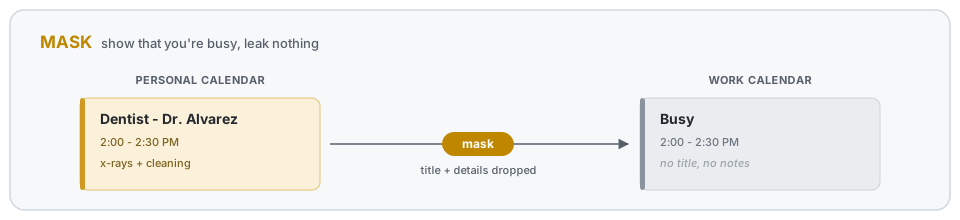
Mask: show that you’re busy, without the details
The first move is the one the old script did. Take an event from a personal calendar and drop a copy onto my work calendar as an opaque block. Same time slot, but the title and notes are gone - coworkers see “Busy,” not “Dentist - Dr. Toothy.”
Buffer: pad the block
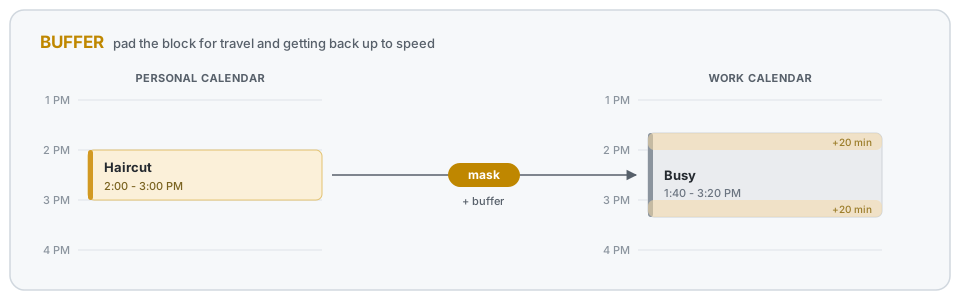
A 2-2:30 appointment isn’t really over at 2:30. I have to drive back home and get my head back into work. So the busy block gets padded on both ends by a buffer. The half-hour haircut becomes a wider hold on my work calendar.
Mirror: see my work day on my own calendar
The other direction, and the half the old script never did. Take my work meetings and copy them onto a personal calendar - but just the title. No guest list, no attached docs, no meeting notes. Enough to see the shape of my day on my phone, with none of the work content riding along where it shouldn’t.
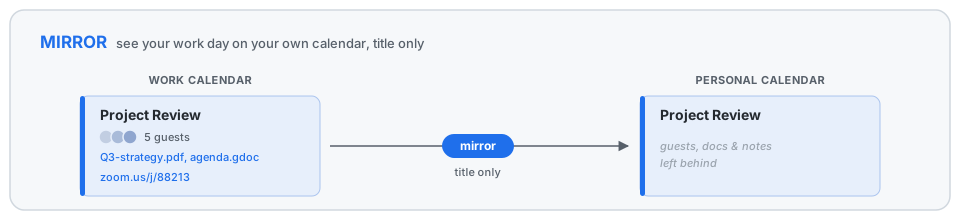
This is the half that lets Lisa glance at her calendar and see I’m in a meeting from 10 to 11, without either of us logging into my work account.
Extras: carry the two things I actually reach for
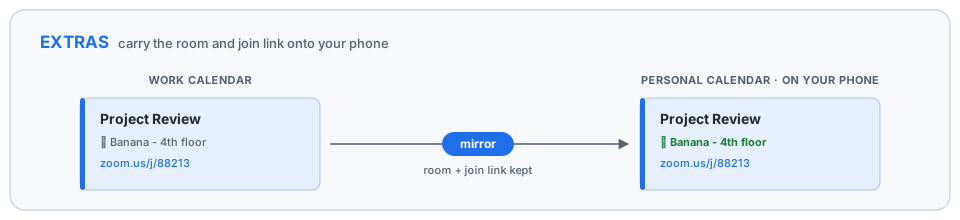
The title is usually enough, but two details are worth carrying over, and each is its own switch.
The join link, for when I’m running late and need to drop into a Zoom from my phone while walking to the car - no laptop, no digging through email.
The room, for when I’m on-site and have no idea where a meeting actually is. I want to glance at my phone and see “Skyscraper, 4th floor, Room 2” not pull out my laptop to find it.
Quick setup
It’s a Google Apps Script, so there’s no server to babysit - it lives in your Google account and fires whenever a calendar changes. Setup is mostly wiring:
- Share the calendars you want to sync into the account the script runs as - read on the sources, write on the targets.
- Clone the repo,
npm install, and copy the template:cp Config.example.js src/Config.js. - Edit
src/Config.js(below) with your calendars and rules. npx clasp login,npx clasp create --type standalone --rootDir src, thennpx clasp pushto send it up.- In the Apps Script editor, run
dryRunAllto preview,syncAllto do it for real, andsetupTriggersonce to keep it running on its own.
The config is the whole interface. You name your calendars once, then write rules against those names. Here’s roughly what mine looks like:
// Name the calendars once; rules reference these names.
const CALENDARS = {
  work: 'primary',                       // the account calsync runs as
  personal: 'fisher@gmail.com',          // shared into the work account
  family: 'family-abc123@group.calendar.google.com',
  phone: 'workview-def456@group.calendar.google.com', // a calendar I read on my phone
};

function getSyncRules() {
  return [
    // Personal life -> work, as opaque "busy" blocks padded for travel.
    {
      name: 'personal_to_work',
      mode: 'mask',
      sources: ['personal', 'family'],
      target: 'work',
      maskTitle: 'Busy',
      bufferMinutes: 20,                  // a 2:00-2:30 appt holds 1:40-2:50
      color: CalendarApp.EventColor.YELLOW,
      visibility: CalendarApp.Visibility.PRIVATE,
      includeWeekends: false,
      excludeTitles: ['[free]'],          // skip personal events tagged [free]
    },

    // Work day -> a calendar I read on my phone: titles, room, and join link.
    {
      name: 'work_to_phone',
      mode: 'mirror',
      sources: ['work'],
      target: 'phone',
      copyLocation: true,                 // carry the room
      extractUrlRegex: 'company\\.zoom\\.us', // carry a matching join link
      excludeTitles: ['Busy'],            // don't mirror my own mask blocks back
    },
  ];
}
The mask rule is the one I lean on most. bufferMinutes is the travel-and-context-switch pad, maskTitle and visibility are what keep the details off my work calendar, and excludeTitles lets me opt a personal event out by tagging it [free]. Everything not set falls back to sensible defaults, so a rule only has to say what’s interesting about it.
If you want to run your own, setup and the full list of knobs are in the README.